A Kingdom For A Finder!

A tourist takes a picture of her friend using the rear LCD screen of a camera at the Houses of Parliament. London. September 17, 2011. Photo: Edmond Terakopian

Yesterday, on a walk through a park, I saw a gentleman with a Nikon (could not see which, but a ‘prosumer grade’ one it was) with a fairly long zoom. He had the camera on live view, holding it in front of him like a mobile cam, while he tried to frame his subject. There are whole generations of consumers who do not know what a camera finder is for.

I am not one of them.

Way back a hundred years ago, most cameras, including press cameras, had finders that forced you to hold the camera before you on semi-extended arms … like a latter-day mobile camera. Even the null-series Leica started out with one of these ‘Newton finders’. Fortunately, before the launch in January 1925, it was replaced with the reverse Galilean finder we all know (and which, much transmogrified, is still a part of the M9 rangefinder). This made the camera capable of framing quickly and spontaneously, even with a mobile subject. The Leica Way. Without that finder, the camera would have fallen flat. Those early buyers did not give a damn about the advantages of perforated 35mm cine film. What captured them was a camera that could be used quickly and spontaneously, in the midst of the stream of life.

Those Edwardian press photogs could use Newton finders because (a) their standard lenses captured a lot, and if the target was somewhere on the plate, he could be cropped in; and (b) because their subject matter was static. You have seen the old newsreels. The Prime Minister / Président de Conseil / Ministerpräsident emerges from his residence, stops, faces the cameramen, puts on a statesmanlike half-smile, raises his cylinder hat – rattle rattle bang as shutter curtains the size of small bandannas sail majestically across half-plate glass negatives – the dignitary nods benevolently at the Gentlemen of the Press, and these scurry away. The optical direct finder, just as much as the small negative, created a new, different style of photography.

Mayday festivities in Stockholm. Leica M9, 25mm Biogon, zone focusing and 1/4000th. Photo: Lars Bergquist

With a rear display for ‘finder’, work is completely counter-intuitive, and hence slow. Even with a mirror reflex camera, SLR or TLR, you look at the matte screen, not at the subject. And with an electronic viewfinder, you look at a small TV. With for instance a Leica M, you do not look at the finder, but through it. You see reality, not an image of it. The finder does exist in your peripheral vision only. Therefore, cameras with optical finders are the instruments of choice for what one might call interactive photography, or even participating photography.

And now we seem to be back in 1910 again. I beg to be excused. I will never, under any circumstances, purchase a camera without a proper finder. Yes, I do own one. The letters on it say NOKIA.

By Lars Bergquist / Guest Contributor 
Steve McCurry Remembers September 11th

A Decade After September 11th

Photographers Remember 9/11


New Website For Video Work

TERAVISION

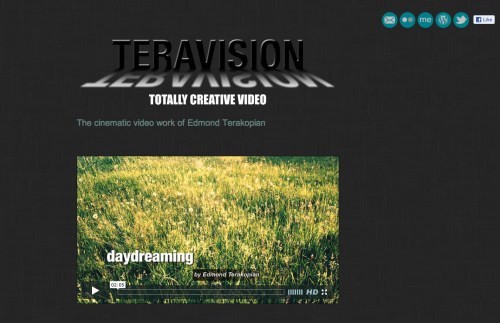
The Cinematic Video Work Of Edmond Terakopian

Some readers may not be aware of my film work; I embraced the Canon 5D MkII when it came out, not only as a photographic camera but also as a tool for shooting video. This opened the door to making films with the Olympus E-P2 Micro 4/3 camera and even a RED One. I love the creative avenue short films open and I can share some of my projects, especially the short films and montages, here on my new website:

Teravision – Totally Creative Video


Edmond Terakopian with a RED One camera (from NDP http://www.newdaypictures.com/ ) with a Rode NTG-2 microphone, whilst shooting "Daydreaming". June 12, 2010. Photo: Antje Bormann


Nik Software Webinar

Online Seminar About My Workflow

Image processed using Nik Software's Silver Efex Pro 2 and Aperture. Shot on a Leica X1. Miami skyline as the sun begins to set. June 16, 2011. Photo: Edmond Terakopian

I’m pleased to announce that I’ll be holding another free online seminar showing my workflow in Aperture, Photoshop and Nik Software’s range of plugins. With each new seminar I use new work, so even if you’ve attended one before, there will be lots of new stuff, so do join in. As always, there will be an opportunity for questions at the end. Hope to see you online 🙂

Thursday, September 29th, 2011 at 19.00 GMT

CLICK HERE TO BOOK!

Installing an SSD into a MacBook Pro

Following on from my previous post on installing an SSD into my Mac Pro by utilising the optical bay (allowing a total of six drives to be installed in all) I decided to do a similar thing to my Apple MacBook Pro.

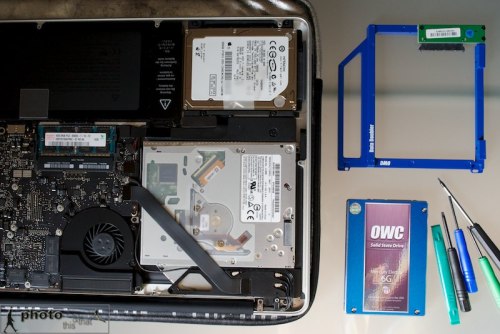
Installing an OWC Mercury Electra 6G SSD into an Apple MacBook Pro (15″, Mid 2010 model). The OWC “Data Doubler” bracket, SSD and the tools needed for the job. August 22, 2011. Photo: Edmond Terakopian

With cloud computing (storage of data, transferring data with services such as Drop Box and buying of software) and USB keys, we have become less reliant on optical drives (CDs or DVDs). It makes absolute sense to utilise this space by fitting a second hard drive. Other World Computing, or OWC, have a genius adapter called a Data Doubler which has the form factor of a laptop internal optical drive and is a bracket for holding a 2.5″ hard drive or SSD.

Installing an OWC Mercury Electra 6G SSD into an Apple MacBook Pro (15″, Mid 2010 model). With the cover off; the DVD drive where the SSD will be installed is on the bottom left. The OWC “Data Doubler” bracket, SSD and the tools needed for the job. August 22, 2011. Photo: Edmond Terakopian

Having found a European dealer, Macupgrade (superb service), I decided to order the parts needed for this project (You can also order direct from OWC):

OWC Data Doubler & optional USB SATA Optical Drive Enclosure
OWC Mercury Electra 6G 120Gb SSD
 

Rather handily, the Data Doubler comes with a full toolkit as well as extremely comprehensive instructions on how to fit it, covering a very large range of Mac laptops. What I found even more useful were the excellent instructional videos on the OWC site.

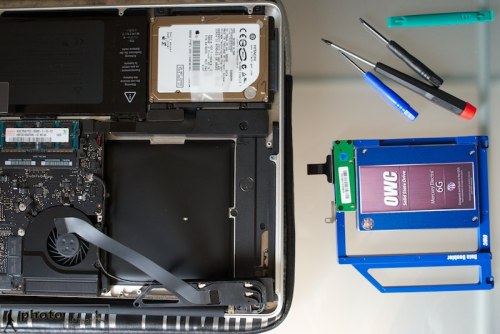
Installing an OWC Mercury Electra 6G SSD into an Apple MacBook Pro (15″, Mid 2010 model). With the cover off; with the DVD drive removed. This is where the SSD will be installed. The OWC “Data Doubler” bracket, SSD and the tools needed for the job. August 22, 2011. Photo: Edmond Terakopian

All in all, it took around thirty minutes to take out the DVD Superdrive, install the SSD and finally install the optical drive into the external USB case (which is also powered by the USB port, so no need for AC adapters). Whilst not complicated, it pays to take things slowly and follow the instructions to the letter as one is dealing with sensitive equipment with fragile wiring and circuitary.

Installing an OWC Mercury Electra 6G SSD into an Apple MacBook Pro (15″, Mid 2010 model). The OWC “Data Doubler” bracket and SSD installed, with the conventional hard drive on the right. August 22, 2011. Photo: Edmond Terakopian

What’s fantastic about this upgrade is having two separate hard drives inside a laptop. The SSD now contains OS X Lion and all my programs. It also contains my Aperture Library and images are downloaded onto the SSD for extremely speedy editing. Once I’ve done my edits, these are then exported as Projects to the conventional 500Gb internal hard drive. Also as I approach getting the SSD full, images in the Aperture Library, after backups, can either be deleted or stored on the conventional hard drive as Referenced Files and thus, still appear in the Aperture Library.

Installing an OWC Mercury Electra 6G SSD into an Apple MacBook Pro (15″, Mid 2010 model). The DVD Superdrive is then installed in the OWC external optical drive case. August 22, 2011. Photo: Edmond Terakopian

The same workflow will apply to video editing with Final Cut X; small projects will have video initially loaded into a Project on the SSD for speed and then moved onto the conventional hard drive for storage. Bigger projects will just be downloaded onto the conventional hard drive.

I’m extremely impressed with this upgrade; it has brought even more usability to my MacBook Pro and made it blisteringly fast too. Previously my boot up time (from cold) was 37 seconds; with the SSD, it’s now 12 seconds! Programs open in a flash too. I for one am hooked on this latest generation of SSDs with Sandforce controllers. Completely recommend the SSD path to anyone for whom time is precious!

Addendum:

Great news; the fabulous folks at Macupgrade have offered all readers a kind 10% discount on all items in their shop. Discount code: macupgradephoto

IMPORTANT NOTE: Depending on your model of MacBook Pro, installing the SSD in the optical bay as shown will not harness the drive’s full speed. Certain MacBook Pro models have a faster SATA speed channel for the hard drive bay than the optical bay. It’s worth researching your model of computer to ensure you gain the maximum speed benefit. For my particular laptop, the speed is identical on both SATA channels.

The regular Hard Drive is in the optical bay and the OWC SSD is in the HD Bay.

The regular Hard Drive is in the optical bay and the OWC SSD is in the HD Bay.