Category Archives: Computers and Software

Nik Software Webinar

Online Seminar About My Workflow

Image processed using Nik Software's Silver Efex Pro 2 and Aperture. Shot on a Leica X1. Miami skyline as the sun begins to set. June 16, 2011. Photo: Edmond Terakopian

I’m pleased to announce that I’ll be holding another free online seminar showing my workflow in Aperture, Photoshop and Nik Software’s range of plugins. With each new seminar I use new work, so even if you’ve attended one before, there will be lots of new stuff, so do join in. As always, there will be an opportunity for questions at the end. Hope to see you online 🙂

Thursday, September 29th, 2011 at 19.00 GMT

CLICK HERE TO BOOK!

Installing an SSD into a MacBook Pro

Following on from my previous post on installing an SSD into my Mac Pro by utilising the optical bay (allowing a total of six drives to be installed in all) I decided to do a similar thing to my Apple MacBook Pro.

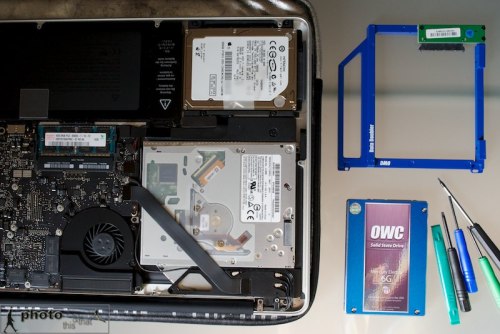
Installing an OWC Mercury Electra 6G SSD into an Apple MacBook Pro (15″, Mid 2010 model). The OWC “Data Doubler” bracket, SSD and the tools needed for the job. August 22, 2011. Photo: Edmond Terakopian

With cloud computing (storage of data, transferring data with services such as Drop Box and buying of software) and USB keys, we have become less reliant on optical drives (CDs or DVDs). It makes absolute sense to utilise this space by fitting a second hard drive. Other World Computing, or OWC, have a genius adapter called a Data Doubler which has the form factor of a laptop internal optical drive and is a bracket for holding a 2.5″ hard drive or SSD.

Installing an OWC Mercury Electra 6G SSD into an Apple MacBook Pro (15″, Mid 2010 model). With the cover off; the DVD drive where the SSD will be installed is on the bottom left. The OWC “Data Doubler” bracket, SSD and the tools needed for the job. August 22, 2011. Photo: Edmond Terakopian

Having found a European dealer, Macupgrade (superb service), I decided to order the parts needed for this project (You can also order direct from OWC):

OWC Data Doubler & optional USB SATA Optical Drive Enclosure
OWC Mercury Electra 6G 120Gb SSD
 

Rather handily, the Data Doubler comes with a full toolkit as well as extremely comprehensive instructions on how to fit it, covering a very large range of Mac laptops. What I found even more useful were the excellent instructional videos on the OWC site.

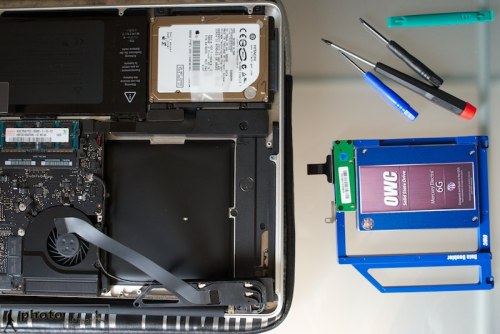
Installing an OWC Mercury Electra 6G SSD into an Apple MacBook Pro (15″, Mid 2010 model). With the cover off; with the DVD drive removed. This is where the SSD will be installed. The OWC “Data Doubler” bracket, SSD and the tools needed for the job. August 22, 2011. Photo: Edmond Terakopian

All in all, it took around thirty minutes to take out the DVD Superdrive, install the SSD and finally install the optical drive into the external USB case (which is also powered by the USB port, so no need for AC adapters). Whilst not complicated, it pays to take things slowly and follow the instructions to the letter as one is dealing with sensitive equipment with fragile wiring and circuitary.

Installing an OWC Mercury Electra 6G SSD into an Apple MacBook Pro (15″, Mid 2010 model). The OWC “Data Doubler” bracket and SSD installed, with the conventional hard drive on the right. August 22, 2011. Photo: Edmond Terakopian

What’s fantastic about this upgrade is having two separate hard drives inside a laptop. The SSD now contains OS X Lion and all my programs. It also contains my Aperture Library and images are downloaded onto the SSD for extremely speedy editing. Once I’ve done my edits, these are then exported as Projects to the conventional 500Gb internal hard drive. Also as I approach getting the SSD full, images in the Aperture Library, after backups, can either be deleted or stored on the conventional hard drive as Referenced Files and thus, still appear in the Aperture Library.

Installing an OWC Mercury Electra 6G SSD into an Apple MacBook Pro (15″, Mid 2010 model). The DVD Superdrive is then installed in the OWC external optical drive case. August 22, 2011. Photo: Edmond Terakopian

The same workflow will apply to video editing with Final Cut X; small projects will have video initially loaded into a Project on the SSD for speed and then moved onto the conventional hard drive for storage. Bigger projects will just be downloaded onto the conventional hard drive.

I’m extremely impressed with this upgrade; it has brought even more usability to my MacBook Pro and made it blisteringly fast too. Previously my boot up time (from cold) was 37 seconds; with the SSD, it’s now 12 seconds! Programs open in a flash too. I for one am hooked on this latest generation of SSDs with Sandforce controllers. Completely recommend the SSD path to anyone for whom time is precious!

Addendum:

Great news; the fabulous folks at Macupgrade have offered all readers a kind 10% discount on all items in their shop. Discount code: macupgradephoto

IMPORTANT NOTE: Depending on your model of MacBook Pro, installing the SSD in the optical bay as shown will not harness the drive’s full speed. Certain MacBook Pro models have a faster SATA speed channel for the hard drive bay than the optical bay. It’s worth researching your model of computer to ensure you gain the maximum speed benefit. For my particular laptop, the speed is identical on both SATA channels.

The regular Hard Drive is in the optical bay and the OWC SSD is in the HD Bay.

The regular Hard Drive is in the optical bay and the OWC SSD is in the HD Bay.

SSD – The Need For Speed

Upgrading the Mac Pro to SSD

The main cause of a sluggish computer is generally a low amount of RAM, slow processors and slower hard drives. The best advice I can give anyone who wants to speed up their machine and also make it more stable, is to upgrade the RAM to as much as can be afforded. Processors are generally hard to change out or upgrade (as this will often mean either complex adapters or a new motherboard) and hard drives usually do make a noticeable difference when going from 5400rpm to 7200rpm and then to 10,000rpm.

Upgrading the Mac Pro to SSDs. After opening the side, the DVD drawer is slid out half way to allow the bable to be unplugged from the rear of the drive before fully removing the tray. August 02, 2011. Photo: Edmond Terakopian

A few years ago I got my first ever computer with an SSD; the original MacBook Air. The speed with which it booted up and programs started up was stunning. Roll on a few years and SSDs have come into their own. They are not only much faster but have also dropped significantly in price and the best ones even maintain themselves.

Upgrading the Mac Pro to SSDs. Rather helpfully, the late 2009 Mac Pro has two SATA cables with power connectors in the DVD drive bay. August 02, 2011. Photo: Edmond Terakopian

I recently decided that I was going to upgrade my Mac Pro to an SSD drive. I use my machine to do image processing (using Aperture), hold my fully searchable archive of around half a million images (using Aperture) and also edit video using Final Cut Pro. The launch of Apple’s OS X Lion seemed like the perfect time and I set to researching the SSD market.

Upgrading the Mac Pro to SSDs. The OCZ SSDs; primary boot disk will be the 240Gb Vertex 3 Max IOPS and the secondary will be the 120Gb Agility 3 - shown with a traditional 3.5" hard drive for size comparison. The DVD tray is to the right. August 02, 2011. Photo: Edmond Terakopian

I decided to go for an OCZ Vertex 3 240Gb Max IOPS SSD. This has a Sandforce controller (fast becoming a standard and something you should go for both for speed and also maintenance abilities – basically cleaning out any garbage that is accumulated as files are deleted). This would be my boot drive. Thinking things through and being a huge fan of Final Cut Pro X, I wanted to use it as my main editing program, so realised that having a dual boot system would be best as I could then install Final Cut Pro Studio (FCP 7) on the second boot drive, giving me full access to my older video projects (Apple recommends using separate partitions or boot drives for best results). For the second drive I went for a smaller and cheaper drive; a 120Gb OCZ Agility 3 SSD.
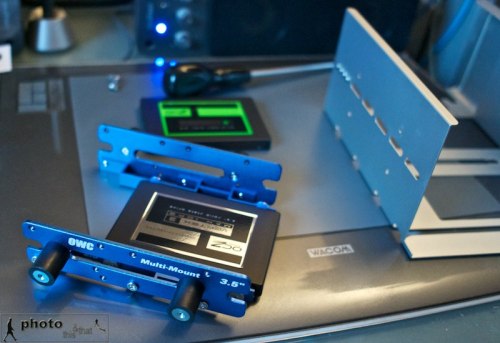
Upgrading the Mac Pro to SSDs. The OCZ Vertex 3 mounted in the OWC Multimount. August 02, 2011. Photo: Edmond Terakopian

With my Mac Pro already having all four drive bays filled, I looked to OWC for a solution. They have a very neat adapter that lets a 2.5″ or 3.5″ hard drive get mounted in the CD / DVD drive bay of the Mac Pro. I had seen this several years ago and feared it unstable because of heat buildup (This bay doesn’t have an intake fan) but knowing that SSDs produce practically no heat (and consume minimal power) meant that it was the perfect solution. Alas I ordered the mount before I had decided on having two SSDs so I also found a similar adapter in the UK made by Akasa which I promptly ordered. I must say that I do prefer the OWC method and may well get another one of their multi mounts!
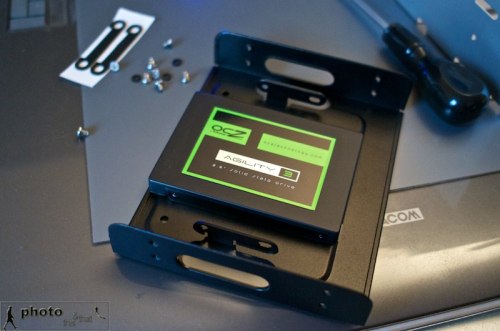
Upgrading the Mac Pro to SSDs. The OCZ Agility 3 mounted in the Akasa SSD & HDD Adapter. August 02, 2011. Photo: Edmond Terakopian

My machine is an early 2009 Mac Pro which very usefully already has twin SATA and power cables coming into the DVD drive bay. Earlier models will have the cable for the optical drive and a spare port on the motherboard, for which you will need a SATA cable and a power cable (probably with a MOLEX splitter). My other problem was that as all 4 HD bays were populated and I wanted to use both the DVD bay cables for the two SSDs; what to do about having a DVD drive? I decided to do away with it! With most software being downloaded and image delivery to clients via Cloud drives (like MobileMe and DropBox) the need for a DVD drive was not a priority. For those occasions when I might definitely need one and also for exploring making BluRay films, I decided to get a portable slimline LaCie x6 BluRay drive. This would also come in handy if I decide to fit an SSD drive in the DVD bay of my 15″ MacBook Pro someday!
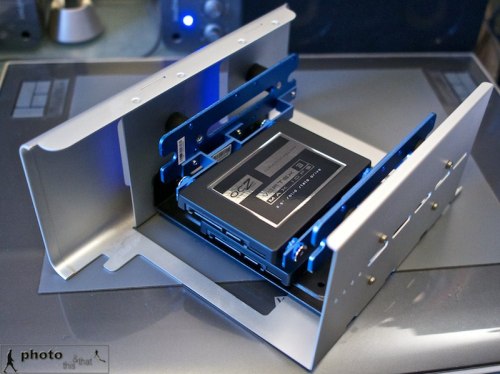
Upgrading the Mac Pro to SSDs. Both OCZ drives in their adapters, fitted to the DVD tray, ready to be installed. August 02, 2011. Photo: Edmond Terakopian

The Mac Pro case (which is a work in design genius on every level) was opened and the side taken off. The DVD tray was then pulled out sideways but only half way. The cable was pulled out from the DVD SuperDrive and the tray was removed fully. The SSDs were then installed, leaving a lot of space between them for air to circulate (even though they do run cool – the cooler, the better in my opinion). The tray was put in halfway, both SSDs were attached to the cables, tray was pushed and everything closed up.
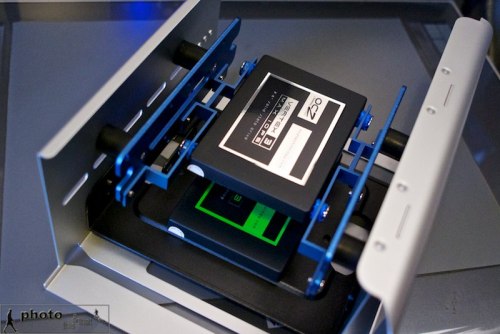
Upgrading the Mac Pro to SSDs. Both OCZ drives in their adapters, fitted to the DVD tray, ready to be installed. August 02, 2011. Photo: Edmond Terakopian

I first started with installing Snow Leopard onto the Vertex 3 SSD and then upgrading it to OS X Lion. Setting were transferred via transfer wizard and I installed all the programs from scratch (using remote disk to access the DVD drive on another machine). I then emptied all the excess stuff from the old hard drive to make it smaller in used capacity and cloned it,  using Carbon Copy Cloner, onto the Agility 3 SSD.

Upgrading the Mac Pro to SSDs. Both OCZ drives in their adapters, fitted to the DVD tray, being installed in the Mac Pro. August 02, 2011. Photo: Edmond Terakopian

The speed difference is amazing. The OS boots up in a matter of seconds and programs open up in a flash. Extra RAM is definitely the first step to a faster and more stable system; changing out your hard drive for an SSD is a very close second!

To give an idea of speed, my old drive was an extremely fast, enterprise class WD VelociRaptor HD spinning at 10,000rpm. It has a sustained read and write speed of 126MB/s. The OCZ 240Gb Vertex 3 Max IOPS has a maximum read speed of 550MB/s and write speed of 500MB/s. That is some speed increase!

Addendum: Although for this project I used a Mac Pro, the same principle is true when  installing a compatible (most 2.5″ drives will be) SSD into a MacBook, MacBook Pro, iMac (although much more complex & possibility of voiding warranty – so do check) and PCs of most shapes and sizes. An SSD will speed up your boot time, the startup of any programs, access to any files on the SSD as well as faster shutdowns. You will also gain from less heat, no noise and less power being consumed.

Since writing this article, I have found a European dealer for OWC products called Macupgrade. The team there have kindly offered readers of the blog a 10% discount across the store. Code: macupgradephoto


My Workflow Using Aperture and Nik Software Plugins

My Workflow Using Aperture and Nik Software Plugins from Edmond Terakopian on Vimeo.

A free online webinar workshop hosted by Nik Software. I’ll show how I use Apple’s Aperture in combination with my favourite plugins from Nik Software; Viveza 2, Silver Efex Pro 2 and Sharpener Pro 3. I’ll also demonstrate how the same plugins work within a Photoshop environment. Regardless of which platform you’re on, you should find something of interest as the plugin interfaces and use are practically the same. This is the recording from the webinar on June 7, 2011.

For those who missed the live webinar on June 7th, 2011, here is a recording of the event. Due to it’s format, sadly we’ve had to cut out the Q&A session, so do keep your eyes on this blog and Nik Software’s pages to find out when the next webinar will be.

My Workflow Using Nik Software

Workflow Webinar

I’ll be holding a free webinar hosted by the lovely folks at Nik Software.

Colour processing done usng Viveza 2. Sunset, London. April 03, 2011. Photo: Edmond Terakopian

June 7th, 2011 at 7pm GMT.

TO SIGN UP, USE THIS LINK.


Black and white processing done using Silver Efex Pro 2. British street party on the occasion of the Royal Wedding of Prince William to Catherine Middleton. Photo: Edmond Terakopian

I’ll show how I use Apple’s Aperture in combination with my favourite plugins from Nik Software. I’ll also demonstrate how the same plugins work within a Photoshop environment. Regardless of which platform you’re on, you should find something of interest as the plugin interfaces and use are practically the same.

Colour processing done using Viveza 2. Glasgow skyline, comprised of industrial plants and residential blocks. February 12, 2010. Photo: Edmond Terakopian

So, do sign up and hope to see you online 🙂

Canon Pro Photo Solutions 2010

Business Design Centre, Islington,
London, 26 & 27 October

Canon Pro Photo Solutions is now in it’s second year and I have to say, its the best trade show I have ever been to. It’s more focussed towards professional photographers and enthusiasts who are at the top of their game. I really can’t urge you enough to check it out.

The format is in two basic forms; a large number of seminars and also exhibitors showing off their newest kit.

This slideshow requires JavaScript.

Photos By: Ant Upton, Antje Bormann, Jeff Ascough, LP & Luke MacGregor.

I’ll be there presenting my work and workflow (both photographic and video) in a seminar called “Moving Forwards With Photography & Video” over both days, in Seminar Room 1 from 14.00 to 14.50.

I’m also going to be with SnapperStuff (stand 49) showing my favourite ThinkTank Photo bags and helping anyone with their questions to do with bags or anything else to do with photography or video. Definitely try and pop by and see the new Retrospective and Sling range.

Hope to see you there!