Category Archives: Review

DSLR Video Viewing Accessories

Marshall V-LCD50-HDMI,

Zacuto Z-Finder EVF Pro

& Cineroid EVF4L

For all the advantages associated with shooting HD video on DSLR cameras, ergonomics isn’t one of them. While they provide visually rich and cinematic video, DSLRs just don’t have the right form factor for video, especially if you need to “run and gun”. The development of dedicated rigs by the likes of Zacuto and Redrock Micro has made up for some of this, but while they make it easier to use a DSLR without a tripod, they have never been perfect. The main reason is that the rear LCD of the camera is used for viewing, so it has to be placed in front of the user’s eye, ruining the balance and bringing the weight off the right shoulder to the centre, which in turn makes the whole setup a little unsteady for longer takes.
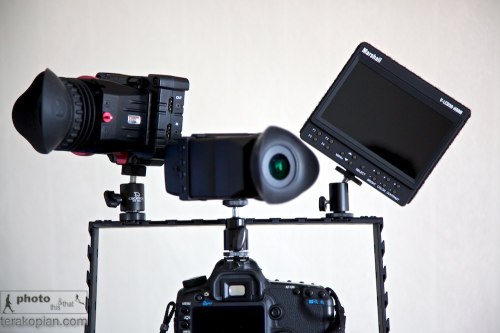
L-R: Zacuto Z-Finder EVF Pro, Cineroid EVF and the Marshall V-LCD50-HDMI, all mounted on a cage and a Canon 5D MkII. Photo: Edmond Terakopian

Electronic viewfinders (EVFs) have been developed to compensate for this problem. A small LCD screen with a magnifier loupe that plugs into the HDMI port on a camera, they prove pretty versatile when coupled with a magic arm that can be placed anywhere. This allows the camera to be kept to the right where the rig and load bearing right arm are, and only mount the relatively lightweight EVF in front of the user’s eye.

Having tried this setup with the Zacuto Striker, I am now of the conclusion that you need a bigger rig when you’re shooting with an EVF, using a weighted shoulder section to hold the camera and viewfinder more comfortably. Using a lightweight rig with something like a Z-Finder Pro and standard or wide-angle lens worked, as the finder was part of the camera body and it formed a point of contact allowing for steadier shots. But an EVF is mounted away from the camera so does not add to stability in the same way. However, it does provide for much more intuitive handling, not to mention its uses for low-level work, where the finder can be mounted at a more comfortable height.

Side By Side

For this review I tested two popular EVFs; one from Cineroid, and the other from Zacuto. Physically, the two units are of similar dimensions (with the Cineroid being slightly longer and the Zacuto a little fatter), and both have HDMI passthrough (mini HDMI only on the Cineroid), which can handle additional viewing accessories, such as a Marshall monitor (reviewed below) to be plugged in for a focus puller or a director to use.

Both also have hinged magnifiers that allow them to be flipped out of the way for longer working distances and for use as a mini monitor. And each has a peaking feature that overlays sharp edges and is a superb focusing aid (with red lines an option on the Cineroid), along with zebra settings and a false colour mode, which are both used to judge exposure. The pixel-to-pixel feature on each is especially handy for EOS 7D and 1D Mk IV users as it allows for precise focus check during recording, while on a 5D Mk II it can be used for precise pre-focusing. Lastly, a monochrome feature helps with focusing and judging exposure, and anyone from a broadcast video camera background will welcome this. In addition, both units allow a number of their buttons to be programmed to use common functions needed by the user.

The Cineroid EVF has a built-in speaker and headphone jack, used only for playback, as DSLRs cannot be monitored during recording. For power, the unit comes with an NP-F compatible battery, but can also use official Sony NP-F batteries of differing sizes, and with the PA01 adapter, can be mains powered, or make use of the Canon LP-E6, the same battery found in the EOS 5D Mk II and 7D. It also has a very neat battery cover for smaller batteries.

The Zacuto is available in four identical EVF models with differing magnifier options. The Snap and Flip models come without the magnifier, being ideal for anyone who already has a Z-Finder, while the Z-Finder EVF and Z-Finder EVF Pro come with the Z-Finders included. The Snap model allows the magnifier to be snapped on and off whilst the Flip allows the Z-Finer to be flipped up or down. With the magnifier out the way, the EVF acts a small screen.

For power, it uses Canon’s LP-E6 batteries, which sits securely, but I wish it had a cover to help keep out the elements.
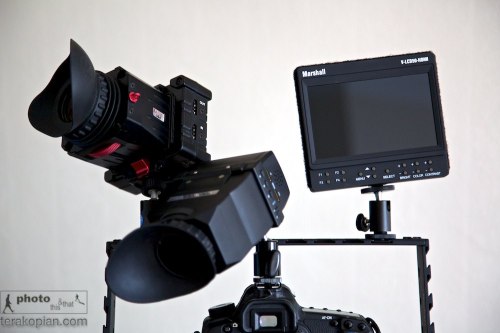
L-R: Zacuto Z-Finder EVF Pro, Cineroid EVF and the Marshall V-LCD50-HDMI, all mounted on a cage and a Canon 5D MkII. Photo: Edmond Terakopian

Both these units work well, improving the filmmaking experience on a HDSLR, but there is one clear EVF winner. The Zacuto has a much sharper display with vibrant colours – it makes the picture jump out. Part of this is down to the superb Z-Finder magnifier, which allows quicker focusing and is more comfortable on the eyes. It’s also better built with superior accessories.

The Alternative

Another option is to use an external field monitor. Traditionally these come in seven-inch screen formats, but Marshall, the leader in this field, recently launched a five-inch version that is better suited to HDSLR filmmakers.

The V-LCD50-HDMI is small and light enough to be used like an EVF, and can be easily mounted onto a rig (a larger shoulder rig that is weighted would provide the best comfort and balance). The unit comes with a hood so it can even be used outdoors in bright light, although probably not as effectively as an EVF with an eyecup magnifier, but can be used with more accuracy from a distance.

Its feature set is rather impressive; a backlit LED screen delivers up a sharp and vivid picture, and it has a peaking feature that allows for precise and fast focusing by firstly turning the image monochrome and then drawing on red lines where the image is in focus. It’s a little odd to use at first, but proves to be a great tool once you get used to the system. The monitor also has the false colours feature for setting correct exposure that turns the image into a range of different colours; with pink and green showing correct exposure, various tones of red, over-exposure, and blues, under-exposure. The unit also has various colour temperature settings as well as markers.

The only connector is HDMI, so it is aimed firmly at the HDSLR market. For power, it uses four AA batteries, coming with a set of rechargeable AAs and charger. The Marshall is rather power hungry, so thankfully there is also a mains adapter for when shooting indoors. Along with a hood, the kit also comes with an HDMI cable and a ball head hotshoe mounting foot.

I used the unit while making a fundraising film for the Royal national Orthopaedic Hospital in Stanmore. We had an interview scene inside an operating theatre with a surgeon, and it allowed for a very quick set up, helping precisely set up lights and props within the frame. A huge bonus this screen has over an EVF is that a director or client can also see what is being filmed, which in certain circumstances is an absolute must.

But it has one major flaw – it’s power switch. Unlike other Marshall monitors, the five-inch version uses a rear-mounted rocker switch that can very easily be switched on by accident (when being stored, it’s essential to remove it’s batteries). I also feel that Marshall has missed a trick by not powering the unit using the Canon LP-E6 battery designed for the EOS 5D Mk II (SEE BELOW).

Despite these shortcomings, the Marshall V-LCD50-HDMI would still be my choice over an EVF.

Addendum

I have just been contacted by Marshall with some rather good news; they have recently (after this article was written) launched a set of battery adapters (Click the Optional Battery Adapters tab). This makes the 5″ Marshall V-LCD50-HDMI much more usable and leads me to recommend it even more highly.

An optional battery plate. Photo: ©Marshall USA
Final Cut Pro X Review

Is FCP X right for the DSLR filmmaker?

Reviewed July 2011, FCP X version 10.0.0 

Depending who you speak to, the world is either about to end or something wonderful happened when Apple launched it’s professional video editing program (June 2011), Final Cut X. Not so much of an upgrade but a completely new 64-bit program. I’ve never seen so much hysteria about a computer program; some it purely misinformed, others from individuals blindly following what the pro editors are saying and some from very justified sources.

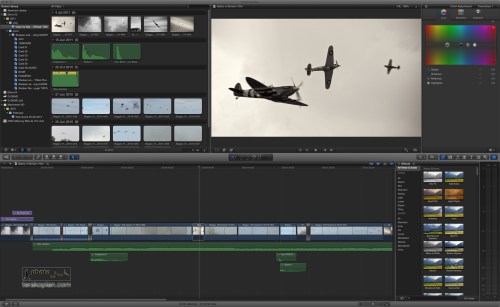
FCP X, showing the Event Library, Clips, Viewer, Inspector (Colour Adjustment), Timeline, Effects Browser and Audio Meters.

The professional editors who rely on Final Cut Pro to make a living do have a point and FCP X is not ready to meet all of their needs. To get an understanding of the issues faced, I contacted Editor and Colourist Neil Patience. “Its fair to say that FCPX received a very negative reaction from many sections of the editing community. The ones who seemed to be shouting “foul” the loudest were those working in TV facilities houses and broadcast environments. As someone who has been working in broadcast television for about 20 years I can understand why they were unhappy”.

“Making television programmes is rarely a solitary endeavour. Collaboration is a key part of the process. TV facilities need to be able to move media along the stages of post production process as efficiently and seamlessly as possible. Shoot, ingest, rough cut, fine cut, finishing, visual FX colour grading and audio dubbing and layback is a common path for many TV shows. Different people bring different skill sets along the way, kit wise, Avid, Apple, DaVinci, Baselight, ProTools and Fairlight are just a few that are used. Getting all those to integrate uses a combination of EDL, XML and OMF files depending on what is going where. The ability to open archive projects is also critical and with no support for opening FCP7 projects, FCPX is again left wanting.”.

“Tape is not dead in our world, we wish it was, but the archive of tape is huge. Apple’s tapeless utopia is no where near a reality. Fifty odd years of worldwide tape based acquisition and mastering adds up, not to mention all the film that was transferred to tape.

Final Cut X, in its current incarnation, literally allows none of the above to happen.

All the tools we need daily to collaborate with our colleagues are missing and the hardware to allow critical external monitoring and measuring to ensure technical compliance is not supported”.

“But it is not all doom and gloom. Not everyone has to meet broadcast delivery requirements or needs elaborate collaborate workflows. The first things that struck me about FCPX is that it feels quick and the timeline feels smooth. The 64 bit architecture is certainly a performance boost. DSLR film makers, for example, can take advantage of this speed and the easy file based importing, everything is geared towards the single user operator. Effects and “looks” can be quickly and easily auditioned and FCPX guides the less technically skilled editors along the way, automatically creating tracks as needed, avoiding clip collisions and keeping things in sync. Background render is a big advantage too. If your main skill is shooting, these features will initially make your life easier as you develop your editing skills”.

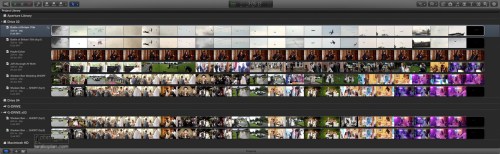
Projects Library in FCP X.

I think it’s important to understand all the issues and negativity from parts of the editing community as it will help make an informed decision on FCP X. I would imagine that the majority of the readership of the BJP will be from a background of photography and of creating photographs and video and like me, working on projects on their own or within a small team. For me, the Canon 5D MkII opened up a whole new world of creativity in film making; one that I thoroughly enjoy. Whilst I enjoy the editing process, it’s not my favourite thing. In fact the first time I ever opened up FCP 6, I had to shut it down and only returned to it days later after mustering up enough courage. FCP X is different; the interface is radically different and no longer looks or feels like an ageing OS 9 program. It’s 64 bit which means it can access all of your system’s RAM. It’s also designed to utilise all CPU cores and also use the GPU. I’ve found it to be super fast and stable. It’s also a bargain compared to the £850 or so FCP 7 Studio cost; FCP X is £179.99 and the two other modules, Motion and Compressor, are both £29.99 each and are all available from the App Store.

Armed with Larry Jordan’s brilliant FCP X Complete Training course (which I thoroughly recommend), I downloaded FCP X and began my exploration. Not having much of an iMovie background, it did initially take me a short while to grasp FCP X but it’s so intuitive that I took to it very easily and quickly. This review addresses whether FCP X is right for the DSLR filmmaker. As always, I decided to do real world tests and spent several days editing a project involving video, photographs, music and recorded audio. For another test, I edited from scratch using native Canon 5D MkII files a piece on the 70th Anniversary of the Battle of Britain; the entire process took around four hours:


What’s New?

One of the biggest things is the new magnetic timeline. FCP X has done away with tracks and it’s just a canvas that let’s you drag your video, audio and photographs onto and they just snap on and into place. It lets you move and insert clips and automatically moves the other clips around for you without the need for modifier keys like previously. You can easily connect clips together (such as effects, titles and so on) so when they are moved around, they always stay together and in sync. Compounding clips takes this a step further allowing various elements to be consolidated into a single clip and as such, edited as one clip. All of these make entire process easier, quicker and much less prone to user error. As a bonus, it also takes up much less space which means working on a smaller screen is so much easier. On the subject of photographs, the previous version’s 4000 pixel limit no longer applies; larger photographs can be imported and used.

The Inline Precision Editor lets you do very intricate and accurate trimming straight on the timeline. With Auditions, you can take a segment and try various clip edits, grading and so on until you have got it spot on.

Importing files has also radically improved, especially for the DSLR video user; the import dialogue lets you not only import, but have your video transcoded to Pro Res 422 and have both the video and audio analysed. All of this happens in the background, so even when these processes are occurring, you can still begin your rough cuts, saving a huge amount of time. A misconception is that FCP X won’t work with tape at all; if you have a firewire controlled video camera which is supported (check with manufacturer for a driver), you can import from tape. Importing from professional broadcast decks or exporting to tape is not supported though. A point to note is that you can always use FCP 7 to log and capture your tape, export this as a Quicktime file (say Pro Res 422) and then import that into FCP X for editing.

The transcoding is optional but recommended. If you’re on deadline and editing a small piece, you can just import your DSLR movie files and edit them natively. For best results though, transcoding is always best; with this happening in the background, it’s no longer such a time waster. Another feature is that all rendering is also done in the background, making the entire editing process fluid as you no longer have to keep stopping to wait for rendering to finish.

Another massive improvement is media organisation; the Event Library is where imported clips are saved; you can choose to have Event Libraries on various connected hard drives. The browser lets you easily look through clips and the skimming feature lets you very quickly skim through a clip to find the segment you are looking for. The ‘I’ and ‘O’ let you easily add In and Out points or you can just use the mouse to click drag a selection straight onto the clip. Once you’ve created your Project, it’s then a simple question of adding (by dragging, keyboard shortcuts or clicking on the relevant button on screen) these clips to the Timeline to begin your rough cut. The whole system, of Events and Projects makes it very easy to share or backup your work through the Duplicate function (which can included source and render files too). This new structure has made organising and backing up extremely simple and manageable. Tagging of clips with ‘favourite’ or ‘reject’ tabs in the browser helps speedily locate useful clips and hiding the ‘rejects’ makes for a tidier workspace. Keywords and smart collections help organise your archive as it grows.

There’s also an abundance of control over audio editing, effects, titles and colour corrections and grading with helpful export presets for commonly used sites for the solo filmmaker like Vimeo as well as export to DVD and even BluRay.

All’s Not Perfect

For me, perhaps the biggest disappointment is that previous FCP projects are not compatible, which means that I must keep FCP 7 installed. I do wish that either Apple or a third party comes up with a translator but it doesn’t seem likely as FCP X has an entirely new project architecture and trackless timeline. I’m also puzzled to why Soundtrack Pro was dropped, although there are more audio facilities built in to FCP X. Although not a user of it myself, I think dropping Colour may have been a mistake.

As far as plugins (such as Magic Bullet), camera and video card support and so on, it’s only a matter of time until 64bit compatible plugins and drivers are released. Most of the big name plugin manufacturers have already openly said they are working on upgrades.

Conclusions

I spent a while discussing FCP X with a photographer colleague on Twitter. He was enraged, quoting video editors as to how bad this release is and he can’t trust Apple and is switching to Adobe Premiere and so on. Funny thing was, two days later, this DSLR using colleague actually tried FCP X and had nothing but praise.

With FCP X, Apple has done what Apple does best; it’s looked into the future (remember the outrage when it dropped the floppy drive?). FCP X seems to be designed for the coming decade and not for what went before it. It has revolutionised the ageing look, feel and workflow of FCP 7 and really brought it in line with OS X; it’s intuitive, elegant, solid and stable. With multi-cam and XML support on the way from Apple, with OMF, AMF and EDL support on the way from third parties, I feel that even the video editing community with all their specific needs will begin using FCP X in 8-12 months.

If you rely heavily on plugins or use specific hardware, my advice is wait a month or two until the upgrades for FCP X arrive. It can co-exist with FCP 7 anyway, so you can carry on using it and begin learning FCP X. One thing is for sure though, FCP X is definitely the future and for the indy filmmaker and DSLR shooter, FCP X is absolutely ideal. Having used it for all of the past week, I dread ever having to open FCP 7 again. I rather like it!

Reviewed, July 2011

Snapseed

Nik Software Does It Again

Once in a while, a company comes up with a product that just amazes me and once I begin using it, wonder how on earth I ever did without it. One such example is Nik Software’s Viveza plugin which did away needing complicated layers and masks for colour image processing. It made the process much more natural and saved time with it’s point, click and slide approach. To my utter amazement, Nik has managed to bring a version of this to the iOS (Apple iPad, iPhone and iPod Touch) platform and it’s called Snapseed.

The iPad is definitely heading to becoming an ideal tool for photographers. It was already a great piece of equipment to use as a portfolio for photographs and video, as well as a great tool for researching stories and reading newspapers and magazines via the various Apps available. As I covered in a previous article, there are already some great image processing Apps available and once these mature and the iPad becomes more powerful and hopefully gets built in USB or an SD card reader, it will definitely become a tool more capable of image processing for the pro on the go.

Snapseed has just taken the bar set previously and raised it by a phenomenal amount. This App is practically why the iPad was invented. The touch interface works so well, that within minutes of using it, the most complex of image processing is done in a matter of seconds. User control is basically based around an up or down swipe for choosing an adjustment and a side swipe for a plus or minus value (or strength value, depending on the adjustment chosen). This way one can very quickly run through the adjustments needed and set a value. It’s so natural, simple and intuitive, with so much fine control that the user interface is simply a work of pure genius.

After the image is loaded into Snapseed, there are two sets of adjustments available; the first set are Automatic, Selective Adjustment, Tune Image, Straighten and Rotate and Crop. This set gives absolute control on the processing. The second page brings more set filters; Black and White, Vintage, Drama, Grunge, Centre Focus and Frames. Although the latter set are an automated looks, they do offer several Styles and variables that can be adjusted, with each filter having it’s own applicable set. These include Filter Strength, Saturation, Brightness, Texture Strength, Centre Size and so on.

Snapseed absolutely comes into it’s own when the Selective Adjust is used. Using the Add (a circle with a plus sign along the bottom of the screen), a spot is selected. This can for example be some blue sky, dark storm clouds, a road surface, a face in shadow and so on. This spot is where the colour to be adjusted is chosen and creates a circle, to show the area that will be adjusted. This circle can be increased or decreased using a ‘pinch’ gesture. Very usefully, as the circle size is adjusted, a red mask appears, showing which the size of the area and also which segments of the image will be covered when adjustments are made.

After the area is defined, the first setting shows a ‘B’ in a blue circle at the centre of the area, standing for Brightness. To make an adjustment, one simply touches the screen and slides left, for darker, or right, for a brighter setting. Once done, a slide upwards reveals the available adjustments available; in this case, Contrast and then Saturation. These are adjusted in a similar way. All of these adjustments only work within the defined circumference and only to the colour of the control spot chosen. If for example a blue sky over woodland is the chosen point, all the adjustments will only effect the blue sky and regardless of how complex the detail in the trees are, non of these is effected, leaving a natural and real look, without the tell tale signs of dodging and burning. It’s as simple as that and within a minute or two, a perfect image can be produced. Snapseed also has a Share button once the image is saved and will Email, Print or send the image to your Flickr or Facebook page.

The only downside to this App is what plagues all iOS photo Apps; there isn’t a single solution that does all. One has to use various Apps together to achieve the desired outcome, for example a RAW processing App (although iOS & app updates have added some RAW functionality, such as Canon and Nikon RAW file support), Snapseed and then an App that can add metadata and FTP. Depending on how many Apps are needed, the constant saving after saving of a jpeg will eventually start to degrade the image. Having said this, as an App, this is by far the most amazing photography software I have seen on the iPad, by far.

The Desktop

In January 2012 Nik Software also brought Snapseed to the Mac desktop. This standalone app works beautifully. Allowing all of the iOS adjustments but on a large desktop with huge files. It’s an absolute must have for any photographer.

Rode VideoMic Pro Review

The Perfect DSLR Microphone?

Photographer and film maker Edmond Terakopian filming at the Royal National Orthopaedic Hospital in Stanmore, using a Canon 5D MkII on a Zacuto Striker with the new Rode VideoMic Pro (with a windshield fitted). In the foreground is the original Rode VideoMic. Filming in an operating theatre. May 16, 2011. Photo: Neil patience

When I reviewed Canon’s 5D MkII in 2009, I concluded that the easiest way to get good audio on the camera was to use Rode’s VideoMic. I’ve been personally using this microphone since and have been getting pretty good results. However in situations where I need to travel compact or when shooting in news type situations, I did wish the VideoMic was smaller.

Rode seems to have been listening and recently launched the much smaller VideoMic Pro. It’s 10cm shorter in length than the VideoMic, 2.2cm lower in height but 0.7cm wider. It’s also lighter with the new model being 85g compared to the VideoMic’s 176g. It is just the right size now and when mounted, it doesn’t stick out the back.

Price wise, the VideoMic Pro is more expensive. Studiospares have the VideoMic Pro at £124.17 exc VAT compared to the older VideoMic at £65.83 exc VAT.

In Use

I did a set of extensive listening tests comparing the VideoMic and VideoMic Pro, using a Canon 5D MkII with it’s audio gain set on automatic. The subject was in an enclosed area and recorded from a distance of 2 meters as well as one meter. I listened to the results playing back the video on a MacPro using Aperture 3. Initially I used a pair of speakers and then headphones. No matter how hard I tried to find differences between the two, I couldn’t. The larger VideoMic was already a superb microphone, and the VideoMic Pro, although much smaller, was as directional in it’s sound gathering and just as clear in picking up all the detail in the voice. If anything, the VideoMic Pro seemed to make a little less background hiss in the quite times, as the camera turned up the gain automatically.

As a result, it later came as no surprise when comparing the specifications of the two microphones to see that Rode have somehow managed to make them identical, even though the VideoMic Pro is so much smaller.

Photographer and film maker Edmond Terakopian filming at the Royal National Orthopaedic Hospital in Stanmore, with the Rode VideoMic Pro. Filming in an operating theatre. May 16, 2011. Photo: Neil patience

In listening tests, although I didn’t do a side by side comparison with it’s closest rival, the more expensive Sennheiser MKE 400 (£136.00 exc VAT), although I had previously tested the Rode VideoMic and in comparative listening tests, the Rode was the clear winner.

The new microphone is a completely different design, with a completely new suspension rig, which ensures camera noise doesn’t vibrate up to and get recoded by the microphone. I’m extremely glad to see that the on switch and all the filter controls are still at the back of the camera, where they are easily seen. There’s nothing worse that making a video recording and not switching on the microphone; with the Rode, an LED clearly shows when it’s on. The Sennheiser has these controls on it’s side where they are easily missed.

The smaller size naturally has it’s conveniences; it’s much harder to snag the microphone and naturally it takes up less room when packed. The shorter size also means that it’s now much easier to use ultra wide angle lenses.

Conclusions

If absolute quality is needed in audio, then currently with the video DSLRs on offer, one’s only answer is to record the audio separately and then sync it up afterwards when editing. I personally use a Zoom H4n audio recorder and Rode’s excellent NTG-3 microphone. However, this is extra equipment and expense, and demands a lot of extra time and expertise when editing. Even when doing dual audio, I still use the VideoMic Pro on a second body when shooting dual cameras (which I often do); this allows for a sound backup but also for a much cleaner audio track to synchronise externally recorded audio with. For the simpler and straight to camera audio recording, Rode’s VideoMic Pro has kept the superb sound of it’s older brother and packed it into a much smaller package. I highly recommend this to anyone wanting to use their DSLRs for video.

Canon 1DX Preview

Hands On With The Canon 1DX

A pre-production Canon EOS 1DX. Photo: Edmond Terakopian

I’m fortunate to have had two opportunities to try out the new Canon EOS 1DX in private (thanks to Canon Europe for organising this) during the Pro Photo Solutions show earlier this week.

I need to firstly make it clear that as this was a pre-production camera, I wasn’t allowed to use my own CF cards for evaluating the images or video (which is fair enough as by the time the camera is released in March 2012, the firmware will have gone through several changes).

What I did get to do was try the camera fully, for both stills and video (checking results on the rear LCD screen), check out the completely redesigned menu system and chat at length with the extremely knowledgeable Graham Smith and Mike Burnhill from Canon.

I must say that I’m very impressed with this flagship camera. It carries on the 1D line and is a rugged workhorse of a machine which has been designed to be even more durable than it’s previous versions (I once stood in torrential rain on assignment for around 6 solid hours with a couple of Canon 1D MkII cameras and ‘L’ lenses. Although my Berghaus Gortex jacket leaked, the cameras carried on working perfectly and never gave any problems).

It’s fantastic having a full frame and fast drive camera, all in one. The 12 fps is just astonishing as is using the 14 fps (with mirror lock up – all of this at 18 megapixels). It’s something I have wished for, for years! The controls on the camera are new, with quite a few being fully programmable. The design and placement for all of these is pretty much spot on (the only problematic one perhaps being having the magnify button which is set low down, below the screen – perfect for reviewing stills, but is a problem for when shooting video and wanting to check focus beforehand (initially spotted by Dan Chung, with whom I’m in full agreement) – I’m sure by launch perhaps one of the more convenient buttons can be programmed via firmware to act as magnify if needed for video).

Shooting up to 51,200 ISO was just astonishing; extremely clean with accurate looking colours. Magnifying in to 100% on an 8000 ISO image made me double take as it looked clean enough to have been a 100 ISO shot! Absolutely amazing. I need to remind readers again though, these were all judged on a pre-production camera using the rear LCD screen.

The AF system is completely new and feels very responsive. The new modes and selection methods with overrides certainly impress.

Another hugely impressive fact is for video shooting the camera has a better file system and no longer drops lines when down sampling to HD. Another massively important addition is adjustable audio meters which display during shooting. Canon have stopped just short by not including a headphone jack. If the AV out port can stream during recording, then perhaps a headphone adapter could be fitted to monitor audio? Who knows!

As far as is the Canon EOS 1DX perfect, we shall have to wait and see. November 3rd is due to see a video product announcement by the company and the rumour sites are buzzing with the launch of the 5D MkIII some time next year.

This certainly seems like a perfect DSLR. Personally, I’d love (as would every single one of my colleagues) a lighter pro body, with a removable grip. Apart from this gripe, it really is an impressive DSLR and ticks almost every box. I can’t wait to test it out properly and see what it’s capable of, both in terms of stills and for video.

Travelling Light – iPad or Air?

Are the Apple iPad 2 or 11″ MacBook Air Viable Alternatives For The Photographer On The Go?

Most photographers have back pain or have suffered in the past. It’s the ridiculous loads we often carry. Camera manufacturers think that we all want huge and heavy cameras; a couple of those, a few professional spec lenses, lights and computer equipment results in a fair bit of weight. Always being on the lookout for ways of cutting down weight and size of gear, I was an early adopter of the first Apple MacBook Air. It was certainly thin enough but with the 13″ screen, it was still big. Now that Apple have released an 11″ version, the quest to see if a smaller laptop will work is on again.

The Apple iPad 2 and MacBook Air (images have been montaged from two originals). Photos: Apple

The iPad is another possibility. However with all the talk of it not being for content creation but consumption, it’s not had a great start with the majority of apps not catering for the professional photographer who wants to edit and send images. I have the original iPad; it’s far easier to always have with me, especially compared to my much larger 15″ MacBook Pro. In fact on a day off I was given an assignment by The Times, which I edited and sent from the field on my iPad. One major omission from the App Store was the lack of a RAW converter; now that there is one, things have become very interesting and the iPad is definitely a contender; with the iPad 2 there is now much more processing power, making it an even more attractive prospect.

Both are surprisingly similar in size, with the iPad 2 at 24.1 cm x 18.57 cm and 0.88 cm deep with a 9.7″ inch display (1024×768 pixels). The 11″ MacBook Air is at 29.95cm x 19.2cm and 0.3 to 1.7cm deep with an 11.6″ display (1366×768 pixels). Form factors though differ hugely, bringing with them their own advantages. The Air has a traditional laptop design, meaning a real keyboard and a screen that hinges open. The whole thing can be placed comfortably on a lap or desk and both hands used to type and control the touchpad. The disadvantage though is that it’s much harder to use on the move. The iPad 2 is held in one hand and easily controlled with the other using it’s touch screen interface. This means that for situations where one is mobile, like when covering a demonstration, it’s very easy to work, editing and sending whilst on the move. Although both are extremely light when compared to regular laptops, the 11″ MacBook Air weighs more at 1.06kg compared to 613g.

With Mac OSX, now at 10.6.7, being a mature and fully featured OS, imaging software is freely available. Apple’s Aperture, Adobe’s Lightroom and Photoshop along with Capture 1, Photo Mechanic an so on cater for all sorts of workflow. iOS on the iPad 2 though is much younger and finding professional imaging apps that are of use to the pro is a little harder.

iPad Apps

PhotoRaw

Essential for basic RAW processing. Although a little slow, it’s very usable and allow the photographer to shoot in RAW and not have to play around with a limited jpeg workflow. PhotoRaw is used for basic RAW processing, the image is saved as a jpeg and then opened in one of the following apps.

Photogene

Full on imaging software, allowing image processing, IPTC metadata and sending, via email and FTP. It has a very usable and easy to learn interface which works well. In tests this proved faster and more straight forward to use than Filterstorm Pro, so we used this for the timed trials.

MacBook Air Software

Any Mac OS X software will run on this machine. One has to be realistic though as even the top of the range model tops off at a 1.6GHz Core 2 Duo with 4Gb of RAM. In practice though, it does run Aperture well, which I used in this test (although I would definitely recommend switching off the processor intensive ‘Faces’ feature unless absolutely necessary).

Speed Comparison

The test was to import one Canon 5D MkII RAW file, process the image, add IPTC metadata and save a jpeg version ready to send to a paper, library or magazine.

iPad 2

Importing, basic RAW conversion using PhotoRaw and saving the file as a jpeg took 5 minutes and 11seconds (Camera attached using Apple’s camera connectivity kit). Photogene took 5 minutes and 10 seconds to process the image. Total time for the iPad 2 was 10 minutes and 21 seconds. I have no doubt that with practice a minute or two can be shaved off this time.

11” MacBook Air

By contrast, the entire procedure took 2 minutes and 59 seconds.

By including using an SSD, the speed gains are tremendous. From a cold start the machine is fully ready in 17.6 seconds compared to the iPad 2’s 28 seconds (which does include typing in a 4 number pin). Startup from sleep are a little different with the MacBook Air taking 4.5 seconds (including typing the user password) compared to one second for the iPad 2.

Final Thoughts

With either platform, all isn’t perfect though. Connecting to the iPad involves using a connectivity kit which allows for directly plugging in SD cards or using a USB cable to connect to a camera directly. I would really welcome a built on SD reader on the iPad and a USB port too. There are also issues with the metadata; I have heard from colleagues that this is being stripped by some FTP servers. Photogene seems to be more stable in this. One just has to make sure the image is exported via the app and not just saved. With the MacBook Air, the two built in USB ports are fantastic and a welcome departure of a single port on the original version. I do find myself hoping for more than the maximum 4Gb of RAM and wishful that it also had a FireWire 800 port.

Where both of these platforms come into their own though is their absolute portability; they are smaller and thinner than other solutions with great battery life. Apple’s figures quote the iPad 2 as having 10 hours of battery life and the 11” MacBook Air as five hours; in practice these seem pretty accurate and I would say the MacBook Air actually lasts longer.

For the photographer who wants to travel light on a quick foreign assignment or wants to minimize the gear they carry if on foot, either of these platforms will appeal. The MacBook Air though offers more; the ability to use fully mature imaging software and having built in connectivity gives it the edge. For quick and on the move editing the iPad serves a purpose and can do well. Also, the vast number of extremely useful apps and publications on the platform are fantastic. The biggest thing that’s missing though is a professional imaging App. Idruna, the company behind Phojo should be encouraged to support the iPad; this would then be a killer imaging tool.

I can recommend both; they both do their jobs well but in different ways. It’s up to the individual to decide which suits them best. I personally love the iPad and all the content and apps I get on the platform. For imaging though, the MacBook Air clearly has an advantage on speed, capacity and software.

Addendum: This article was originally written for the BJP in May 2011. Since then, a faster MacBook Air 11″ has been released by Apple as well as an app which I highly recommend for the iPad by Nik Software, called Snapseed.