Category Archives: Mac

Travelling Light – iPad or Air?

Are the Apple iPad 2 or 11″ MacBook Air Viable Alternatives For The Photographer On The Go?

Most photographers have back pain or have suffered in the past. It’s the ridiculous loads we often carry. Camera manufacturers think that we all want huge and heavy cameras; a couple of those, a few professional spec lenses, lights and computer equipment results in a fair bit of weight. Always being on the lookout for ways of cutting down weight and size of gear, I was an early adopter of the first Apple MacBook Air. It was certainly thin enough but with the 13″ screen, it was still big. Now that Apple have released an 11″ version, the quest to see if a smaller laptop will work is on again.

The Apple iPad 2 and MacBook Air (images have been montaged from two originals). Photos: Apple

The iPad is another possibility. However with all the talk of it not being for content creation but consumption, it’s not had a great start with the majority of apps not catering for the professional photographer who wants to edit and send images. I have the original iPad; it’s far easier to always have with me, especially compared to my much larger 15″ MacBook Pro. In fact on a day off I was given an assignment by The Times, which I edited and sent from the field on my iPad. One major omission from the App Store was the lack of a RAW converter; now that there is one, things have become very interesting and the iPad is definitely a contender; with the iPad 2 there is now much more processing power, making it an even more attractive prospect.

Both are surprisingly similar in size, with the iPad 2 at 24.1 cm x 18.57 cm and 0.88 cm deep with a 9.7″ inch display (1024×768 pixels). The 11″ MacBook Air is at 29.95cm x 19.2cm and 0.3 to 1.7cm deep with an 11.6″ display (1366×768 pixels). Form factors though differ hugely, bringing with them their own advantages. The Air has a traditional laptop design, meaning a real keyboard and a screen that hinges open. The whole thing can be placed comfortably on a lap or desk and both hands used to type and control the touchpad. The disadvantage though is that it’s much harder to use on the move. The iPad 2 is held in one hand and easily controlled with the other using it’s touch screen interface. This means that for situations where one is mobile, like when covering a demonstration, it’s very easy to work, editing and sending whilst on the move. Although both are extremely light when compared to regular laptops, the 11″ MacBook Air weighs more at 1.06kg compared to 613g.

With Mac OSX, now at 10.6.7, being a mature and fully featured OS, imaging software is freely available. Apple’s Aperture, Adobe’s Lightroom and Photoshop along with Capture 1, Photo Mechanic an so on cater for all sorts of workflow. iOS on the iPad 2 though is much younger and finding professional imaging apps that are of use to the pro is a little harder.

iPad Apps

PhotoRaw

Essential for basic RAW processing. Although a little slow, it’s very usable and allow the photographer to shoot in RAW and not have to play around with a limited jpeg workflow. PhotoRaw is used for basic RAW processing, the image is saved as a jpeg and then opened in one of the following apps.

Photogene

Full on imaging software, allowing image processing, IPTC metadata and sending, via email and FTP. It has a very usable and easy to learn interface which works well. In tests this proved faster and more straight forward to use than Filterstorm Pro, so we used this for the timed trials.

MacBook Air Software

Any Mac OS X software will run on this machine. One has to be realistic though as even the top of the range model tops off at a 1.6GHz Core 2 Duo with 4Gb of RAM. In practice though, it does run Aperture well, which I used in this test (although I would definitely recommend switching off the processor intensive ‘Faces’ feature unless absolutely necessary).

Speed Comparison

The test was to import one Canon 5D MkII RAW file, process the image, add IPTC metadata and save a jpeg version ready to send to a paper, library or magazine.

iPad 2

Importing, basic RAW conversion using PhotoRaw and saving the file as a jpeg took 5 minutes and 11seconds (Camera attached using Apple’s camera connectivity kit). Photogene took 5 minutes and 10 seconds to process the image. Total time for the iPad 2 was 10 minutes and 21 seconds. I have no doubt that with practice a minute or two can be shaved off this time.

11” MacBook Air

By contrast, the entire procedure took 2 minutes and 59 seconds.

By including using an SSD, the speed gains are tremendous. From a cold start the machine is fully ready in 17.6 seconds compared to the iPad 2’s 28 seconds (which does include typing in a 4 number pin). Startup from sleep are a little different with the MacBook Air taking 4.5 seconds (including typing the user password) compared to one second for the iPad 2.

Final Thoughts

With either platform, all isn’t perfect though. Connecting to the iPad involves using a connectivity kit which allows for directly plugging in SD cards or using a USB cable to connect to a camera directly. I would really welcome a built on SD reader on the iPad and a USB port too. There are also issues with the metadata; I have heard from colleagues that this is being stripped by some FTP servers. Photogene seems to be more stable in this. One just has to make sure the image is exported via the app and not just saved. With the MacBook Air, the two built in USB ports are fantastic and a welcome departure of a single port on the original version. I do find myself hoping for more than the maximum 4Gb of RAM and wishful that it also had a FireWire 800 port.

Where both of these platforms come into their own though is their absolute portability; they are smaller and thinner than other solutions with great battery life. Apple’s figures quote the iPad 2 as having 10 hours of battery life and the 11” MacBook Air as five hours; in practice these seem pretty accurate and I would say the MacBook Air actually lasts longer.

For the photographer who wants to travel light on a quick foreign assignment or wants to minimize the gear they carry if on foot, either of these platforms will appeal. The MacBook Air though offers more; the ability to use fully mature imaging software and having built in connectivity gives it the edge. For quick and on the move editing the iPad serves a purpose and can do well. Also, the vast number of extremely useful apps and publications on the platform are fantastic. The biggest thing that’s missing though is a professional imaging App. Idruna, the company behind Phojo should be encouraged to support the iPad; this would then be a killer imaging tool.

I can recommend both; they both do their jobs well but in different ways. It’s up to the individual to decide which suits them best. I personally love the iPad and all the content and apps I get on the platform. For imaging though, the MacBook Air clearly has an advantage on speed, capacity and software.

Addendum: This article was originally written for the BJP in May 2011. Since then, a faster MacBook Air 11″ has been released by Apple as well as an app which I highly recommend for the iPad by Nik Software, called Snapseed.


Workflow With Nik Software & Aperture

Nik Software Webinar Recording

Here is the recording of my Nik Software webinar from September 2011. I share my workflow using Nik Software’s plugins with Aperture, but also demonstrate how they work in Photoshop.


The Passing Of A Genius

So sad to hear of the passing of Steve Jobs. An amazing man with astonishing ideas & foresight. RIP.

The Apple website with a touching tribute to the co-founder of the company:

SSD – The Need For Speed

Upgrading the Mac Pro to SSD

The main cause of a sluggish computer is generally a low amount of RAM, slow processors and slower hard drives. The best advice I can give anyone who wants to speed up their machine and also make it more stable, is to upgrade the RAM to as much as can be afforded. Processors are generally hard to change out or upgrade (as this will often mean either complex adapters or a new motherboard) and hard drives usually do make a noticeable difference when going from 5400rpm to 7200rpm and then to 10,000rpm.

Upgrading the Mac Pro to SSDs. After opening the side, the DVD drawer is slid out half way to allow the bable to be unplugged from the rear of the drive before fully removing the tray. August 02, 2011. Photo: Edmond Terakopian

A few years ago I got my first ever computer with an SSD; the original MacBook Air. The speed with which it booted up and programs started up was stunning. Roll on a few years and SSDs have come into their own. They are not only much faster but have also dropped significantly in price and the best ones even maintain themselves.

Upgrading the Mac Pro to SSDs. Rather helpfully, the late 2009 Mac Pro has two SATA cables with power connectors in the DVD drive bay. August 02, 2011. Photo: Edmond Terakopian

I recently decided that I was going to upgrade my Mac Pro to an SSD drive. I use my machine to do image processing (using Aperture), hold my fully searchable archive of around half a million images (using Aperture) and also edit video using Final Cut Pro. The launch of Apple’s OS X Lion seemed like the perfect time and I set to researching the SSD market.

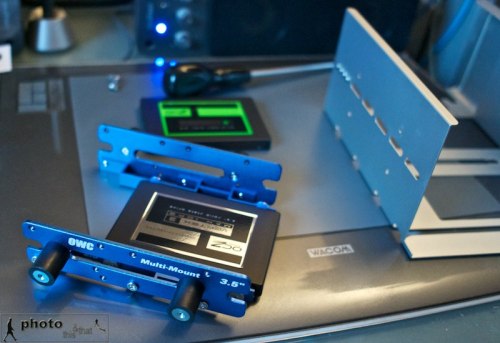
Upgrading the Mac Pro to SSDs. The OCZ SSDs; primary boot disk will be the 240Gb Vertex 3 Max IOPS and the secondary will be the 120Gb Agility 3 - shown with a traditional 3.5" hard drive for size comparison. The DVD tray is to the right. August 02, 2011. Photo: Edmond Terakopian

I decided to go for an OCZ Vertex 3 240Gb Max IOPS SSD. This has a Sandforce controller (fast becoming a standard and something you should go for both for speed and also maintenance abilities – basically cleaning out any garbage that is accumulated as files are deleted). This would be my boot drive. Thinking things through and being a huge fan of Final Cut Pro X, I wanted to use it as my main editing program, so realised that having a dual boot system would be best as I could then install Final Cut Pro Studio (FCP 7) on the second boot drive, giving me full access to my older video projects (Apple recommends using separate partitions or boot drives for best results). For the second drive I went for a smaller and cheaper drive; a 120Gb OCZ Agility 3 SSD.

Upgrading the Mac Pro to SSDs. The OCZ Vertex 3 mounted in the OWC Multimount. August 02, 2011. Photo: Edmond Terakopian

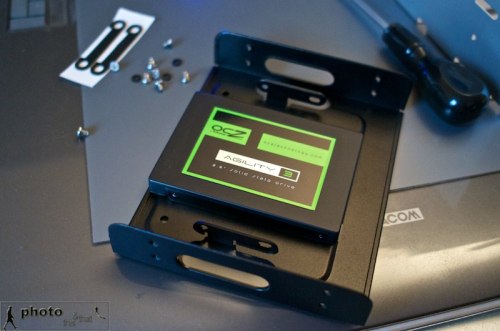
With my Mac Pro already having all four drive bays filled, I looked to OWC for a solution. They have a very neat adapter that lets a 2.5″ or 3.5″ hard drive get mounted in the CD / DVD drive bay of the Mac Pro. I had seen this several years ago and feared it unstable because of heat buildup (This bay doesn’t have an intake fan) but knowing that SSDs produce practically no heat (and consume minimal power) meant that it was the perfect solution. Alas I ordered the mount before I had decided on having two SSDs so I also found a similar adapter in the UK made by Akasa which I promptly ordered. I must say that I do prefer the OWC method and may well get another one of their multi mounts!

Upgrading the Mac Pro to SSDs. The OCZ Agility 3 mounted in the Akasa SSD & HDD Adapter. August 02, 2011. Photo: Edmond Terakopian

My machine is an early 2009 Mac Pro which very usefully already has twin SATA and power cables coming into the DVD drive bay. Earlier models will have the cable for the optical drive and a spare port on the motherboard, for which you will need a SATA cable and a power cable (probably with a MOLEX splitter). My other problem was that as all 4 HD bays were populated and I wanted to use both the DVD bay cables for the two SSDs; what to do about having a DVD drive? I decided to do away with it! With most software being downloaded and image delivery to clients via Cloud drives (like MobileMe and DropBox) the need for a DVD drive was not a priority. For those occasions when I might definitely need one and also for exploring making BluRay films, I decided to get a portable slimline LaCie x6 BluRay drive. This would also come in handy if I decide to fit an SSD drive in the DVD bay of my 15″ MacBook Pro someday!

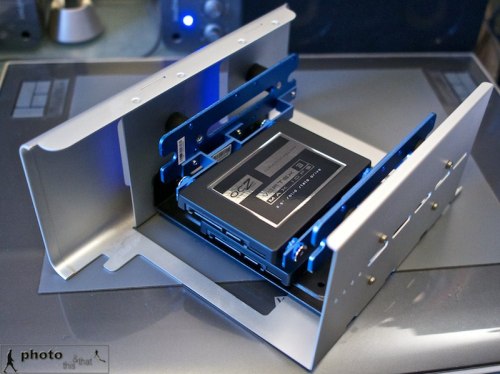
Upgrading the Mac Pro to SSDs. Both OCZ drives in their adapters, fitted to the DVD tray, ready to be installed. August 02, 2011. Photo: Edmond Terakopian

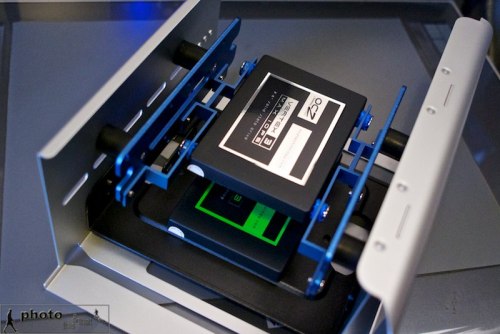
The Mac Pro case (which is a work in design genius on every level) was opened and the side taken off. The DVD tray was then pulled out sideways but only half way. The cable was pulled out from the DVD SuperDrive and the tray was removed fully. The SSDs were then installed, leaving a lot of space between them for air to circulate (even though they do run cool – the cooler, the better in my opinion). The tray was put in halfway, both SSDs were attached to the cables, tray was pushed and everything closed up.

Upgrading the Mac Pro to SSDs. Both OCZ drives in their adapters, fitted to the DVD tray, ready to be installed. August 02, 2011. Photo: Edmond Terakopian

I first started with installing Snow Leopard onto the Vertex 3 SSD and then upgrading it to OS X Lion. Setting were transferred via transfer wizard and I installed all the programs from scratch (using remote disk to access the DVD drive on another machine). I then emptied all the excess stuff from the old hard drive to make it smaller in used capacity and cloned it,  using Carbon Copy Cloner, onto the Agility 3 SSD.

Upgrading the Mac Pro to SSDs. Both OCZ drives in their adapters, fitted to the DVD tray, being installed in the Mac Pro. August 02, 2011. Photo: Edmond Terakopian

The speed difference is amazing. The OS boots up in a matter of seconds and programs open up in a flash. Extra RAM is definitely the first step to a faster and more stable system; changing out your hard drive for an SSD is a very close second!

To give an idea of speed, my old drive was an extremely fast, enterprise class WD VelociRaptor HD spinning at 10,000rpm. It has a sustained read and write speed of 126MB/s. The OCZ 240Gb Vertex 3 Max IOPS has a maximum read speed of 550MB/s and write speed of 500MB/s. That is some speed increase!

Addendum: Although for this project I used a Mac Pro, the same principle is true when  installing a compatible (most 2.5″ drives will be) SSD into a MacBook, MacBook Pro, iMac (although much more complex & possibility of voiding warranty – so do check) and PCs of most shapes and sizes. An SSD will speed up your boot time, the startup of any programs, access to any files on the SSD as well as faster shutdowns. You will also gain from less heat, no noise and less power being consumed.

Since writing this article, I have found a European dealer for OWC products called Macupgrade. The team there have kindly offered readers of the blog a 10% discount across the store. Code: macupgradephoto