Category Archives: Computers and Software

First Open Workshop

A montage of images of me at work, ranging from 1994 to 2009

I’ll be having my first ever open workshop on November 28th, 2009. The general themes will be photojournalism and street photography. It’s going to be most suited to intermediate and advanced photographers, both amateur and professional. Although having done many workshops, lectures and presentations in the UK and abroad, this is the first ever open one, meaning anyone can book and pop along.


Part of the workshop is also a portfolio review, so if you think your work might benefit from some one to one attention, you can also book this.
I’ll be showing some work from my 20 year career as a press photographer, answering any questions you may have and then getting down to the actual workshop, so make sure your batteries are charged and your cameras ready!

The business and booking side of things is being dealt by Ghene Snowdon, so visit the Photosocialise site to make bookings.
As it’s a first and there’s a recession, we’ve decided to keep it mega cheap. These prices will definitely never be repeated again, so if you’re interested, do make a booking sharpish – places are limited and are booking up already!

To see a report from the workshop, click HERE.

MacBook Pro: Cool As A Cucumber!

Let me paint you a picture; I’m in London and we’ve got a heat wave on! Its been in the high twenties and low thirties (in centigrade that is!) and I’m stuck indoors working on several projects. I’m editing a huge portrait project in Aperture on my Mac Pro, doing office stuff, accounts, countless emails, Twitter and getting a presentation together in Keynote on my iMac and also in need of scanning in many rolls of 35mm and 120 roll film.

I decided to hook up my MacBook Pro to my Nikon Super CoolScan 9000 ED for this task, and let it scan away whilst I concentrated on working on the other two machines. Like a maniac, I’ve been sliding my office chair between these three machines for the third day now!

I’ve always used laptops out in the field to edit and file photos from assignments. I’ve never had a laptop work intensively for anything more than a few hours at a time; until now. I’ve been working away from around 10am to around 2am the following morning for three days solid. I’m just stunned that the MacBook Pro has been absolutely stable without even a sign of a hiccup. Its been scanning 220Mb images, some of which have had a lot of processing done (due to scanning settings like shadow and highlight adjustment). I’m just stunned that in this heat (alas, I don’t have air conditioning), working solidly all day and evening long, doing intensive work, my little MacBook Pro’s just got on with it, without the slightest tantrum. I expect this from the Mac Pro and the iMac, but from a laptop? Amazing!

Aperture Zoom Tip

Although I’m usually pretty thorough with reading manuals and finding out helpful tricks with software and equipment, I must admit to stumbling on this very neat trick on Apple’s Aperture just recently.


If you hover the cursor where you want to zoom in on and then hit the zoom shortcut key, it will zoom in exactly there, using where your cursor is as the central point! Genius!

The new Mac Pro (Early 2009 model)

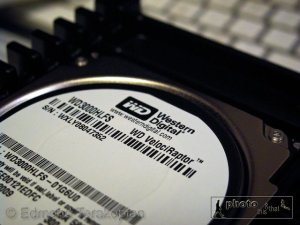
Anyone who’s used Mac OS X knows how quickly the OS starts up and is ready to use. Its stunningly quick. As always though, I’m looking at ways to shave off time and speed things up so I decided without even turning on the new Mac Pro, I was going to install a 300Gb WD VelociRaptor hard drive; what makes this drive special, is that it runs at 10,000rpm compared to the standard 7200rpm drives. This drive takes up one of the four internal bays and will only be used for the OS and applications. I’ve populated the others with larger 1Tb and 1.5Tb drives for storage. With this drive, the computer starts up fully in just over 30 seconds from pushing the power button! Programs start up in seconds!
Years ago I switched from Mac to PC as before Apple went over to Intel chips, the PC platform was quicker (on hardware). Back in those days I used to make my own workstations and would spend days wiring them up perfectly and arranging fans for the perfectly cooled system. So, yes, I admit that I’m a bit of a perfectionist when it comes to interior computer design and set-up. I was already amazed by the first Mac Pro’s innards, but the latest model is a pure work of genius and a work of art. The way the processors and ram are arranged is superb. I upgraded the graphics card to the new Radeon and discovering the retention clamp and release mechanism did leave me speechless! Absolute genius. Ok, I’ll stop this anorak tech talk now!
Although nothing new, MobileMe (or .Mac as it used to be called) still puts a smile on my face when. When you configure a new machine, all you need to do is put in your details and within minutes all your contacts, calendar appointments, Safari bookmarks, Keychains, Mail settings and more are automatically loaded in from the “Cloud” – simple, straight forward and genius!

I’ll be setting this machine up as my main workstation for Aperture and Final Cut Pro. The older Mac Pro will be given over to server and storage duties and I’ve spent a while researching the perfect storage solution for my 350,000 (so far) picture archive, plus videos and sound, as I’d like to retire my PC server; watch this space to find out which company I’ve decided to go with and how I end up setting the system up. I’m also about to start scanning in negatives and transparencies from my 20 year career, so this new storage system is going to play a huge role.

Digital Storage & Back Up! Back Up! Back Up!

We push ourselves to the limit; reach the highest peak, dodge bullets and land mines, badger PRs and argue with the Police…all because we have one agenda; that of making a great picture and communicating the story.

So, after all this effort, sometimes whilst risking our lives, other times at the risk of damaging relationships with loved ones, we dump the pictures onto a hard drive and forget about it, as the next assignment beckons.
We only remember as the cold sweat builds up when that hard drive goes down…and my friends, I guarantee, it will. Hard drives break; its only a question of when. I’ve had a hard drive go bad after three months of use and others which have lasted for many years.
What’s interesting though is to see how well the new SSD (Solid State Drive) will do. I for one hope that they will realise our need for safe and archival storage.
So, how do I back up? I use two machines in my office; an iMac for office work and writing and a Mac Pro for photo work. The iMac has an external G-Tech 1Tb drive connected to it and is my Time Machine hard disk. For those who may not be familiar, Time Machine is built into Apple’s Leopard OS and is a superb backup utility. It just works and has already once saved me when I deleted all of my archived sent emails by accident! On the iMac I also have a second hard drive (soon to be a G-Tech as the Freecom has given up!) which has a second backup (done manually and also with Apple’s Backup utility (part of Mobile Me) of my letters, invoices, articles and my iTunes library. Lastly, the documents are also backed up onto my iDisk every few weeks.
The Mac Pro is a bit more complicated! Before I switched back over to the Apple Mac platform a few years ago, I had several years worth of images on my PCs, so with these I decided to keep them on an HP server, where there are 3Tb of images (all stored as a RAID 01 or Mirror RAID onto another 3Tb of disks, so 6Tb altogether). These images are all referenced into my Aperture library on the Mac Pro. This means that I can search for and see images even when the server is off-line and if I need a high res file, then I simply switch on the server and export the file through Aperture.
On the Mac Pro I also have one hard drive which is my Time Machine volume. This is used for everything but picture, sound and video files. Inside the Mac Pro are four drives and attached externally are eight other drives. Two of these external drives are WD MyBook Studio RAID boxes configured as RAID 01 or Mirror. My working files, pictures and video are stored on the internal drives, and backups on these WDs. This means that anything on these drives is actually stored on two drives; this is great as it saves you from mechanical failure in one of the drives. However, it doesn’t save you from a file being accidentally deleted, so these drives are backed up onto external Seagate drives. The other drives are older work from previous years. My thought process is to use two different manufacturers, so the WD is backed up on Seagate. This is just in case in the future it becomes apparent that there are issues with a particular batch or make and model of a hard drive.
I do also have a Buffalo Terrastation NAS box on the network.
Lastly, all the important stuff is also backed up onto a virtual drive; a cloud disk. I’ve decided to go with Amazon’s S3 as it seems a secure bet. I use Jungle Disk to access my S3 cloud storage. I did today see something called ExpanDrive which seems quite neat and does a similar job. So, by important stuff I mean; all the jpegs files I have sent to clients for publication (filed per year), all images are enter into competitions (filed by year), RAW files of mega important jobs, and video and audio associated files of importance.
I think that cloud storage is definitely the way to go as a third backup. You could have ten backups in your office, but if disaster strikes, they can all get damaged. You definitely need a form of off site storage. I initially was doing this with DVDs and hard drives, but it just didn’t work. The archival qualities of DVDs is not really known and I’ve already had issues with CDs from a few years ago stop working. The problem of hard drive swapping off site is that its a job you have to keep on top off. With cloud storage (like iDisk and Amazon S3), its just a simple matter of drag and drop! Simples!

Mega Useful!


I remember the days when a desktop computer with a couple of internal hard drives would serve us well for years of storage and backups. Well, with all these huge megapixel cameras and most of our music and some video residing on our computers, gigabytes are no longer enough and terabytes are the order of the day.

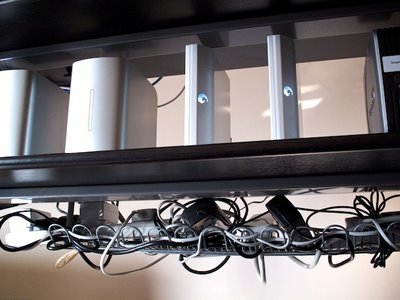
The Signum with a mains extender and AC adapters
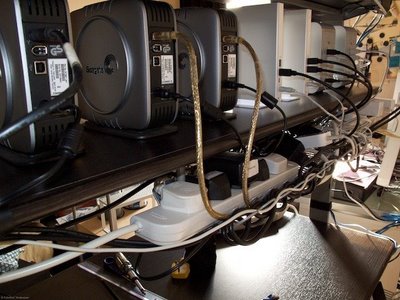
Once our computers are full, we then start to add external hard drive after external hard drive. At present, I’ve got nine hard drives connected to my Mac Pro! One thing that becomes very clear, is that the cables become an absolute mess! Even though half of these are daisy chained FireWire 800 and the others are all connected to a FireWire 400 hub, the cables are still a mess and when you add the mains cables, the mess turns into a nightmare! Anyone who has tried to Dyson (I don’t have a Hoover!!) under their desk knows what I’m talking about. The same problem arises when you try and remove or add a piece of hardware; gaining access becomes a nightmare.

The other Signum used, just after fitting
So, to get over this, I came up with the idea of attaching as much of the cables to the desk and also putting a mains surge protector socket expanders onto the desk too. By complete coincidence I found a perfect thing to help tidy up some of the mess of the cables and mains transformers at Ikea; the Signum is absolute genius! I’ve fitted two of these to one of my desks and it has cleared up so much of the mess. If I need to get to the back of the desk, all I need to do is pull it out as there’s no longer a huge pile of cables anchoring the desk to the carpet beneath.

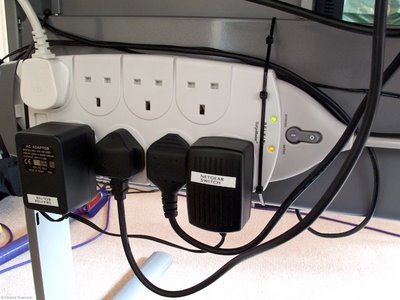
A Belkin Surge Protector attached with sturdy cable ties. You need to be very careful when attaching with cable ties as its not really the most secure way; I’m still looking for a better alternative. use at your own risk.
So, my suggestions would be to try and do a similar thing and see how much tidier and user-friendly your workspace becomes!